

The terminal UI
The screens of Rookery, the server they use, and the keys that move between them.
rookery with no arguments opens the home screen. rookery NAME opens a host directly, on its overview. rookery ui and rookery ui NAME do the same.
rookery                  # home screen: pick a host or create one
rookery studio           # open a host directly
The screens do everything through the API of a Rookery server, the same one on every system. Which server that is:
| When | The screens use |
|---|---|
--server, or ROOKERY_SERVER is set | That server, for this run |
A server is kept by rookery login | That server (A Rookery server) |
Neither, and a rookery serve of yours runs on this machine | Its socket, with no token |
| Neither, on Linux | A server inside Rookery itself, for as long as the screens are open |
| Neither, on macOS or Windows | The Connect dialog, for a server's address and its token |
The server inside Rookery is the one rookery serve runs, served to that Rookery alone over pipes in memory. It's yours, so it takes no token. It doesn't take in the hosts' channels, which is what rookery serve is for. A host whose sudo asks for a password has it asked for in the terminal before the screens open.
A job that still runs when you quit, such as an apply, would end with Rookery. Rookery waits for it instead and says so. Ctrl+C there stops it unfinished. With rookery serve running, the screens use it, and its jobs go on after they close.
The home screen
The home screen has six tabs, switched with the number keys, or with Tab and Shift+Tab in this order.
| Tab | Holds |
|---|---|
1 Hosts | The server's hosts and their addresses, with a dot for whether each answered and why not. A host that still takes the old key of a key rotation is marked key rotation pending. A host that is off shows ◌ stopped. n creates one and s starts the selected one. d makes it the default. x removes it after asking whether to destroy its machine too (Start, stop, copy and remove). r asks again |
2 Provisioners | The provisioners of the plugins, and whether each can be used. Enter opens the page of one, with how it is and what Rookery made with it, grouped by kind. Enter on one of its actions runs it. Enter on something it made opens that resource's page, with its state, its actions and its log. Esc goes back a page (Provisioners) |
3 Settings | The settings of rookery config list and the SSH keys of the server's key ring to copy. Over the network, only some settings change there; on the server's own machine, every one |
4 Registries | npm, Docker, file and Nexus registries (Registries) |
5 Secrets | Secret values, kept in the server's store (Secrets) |
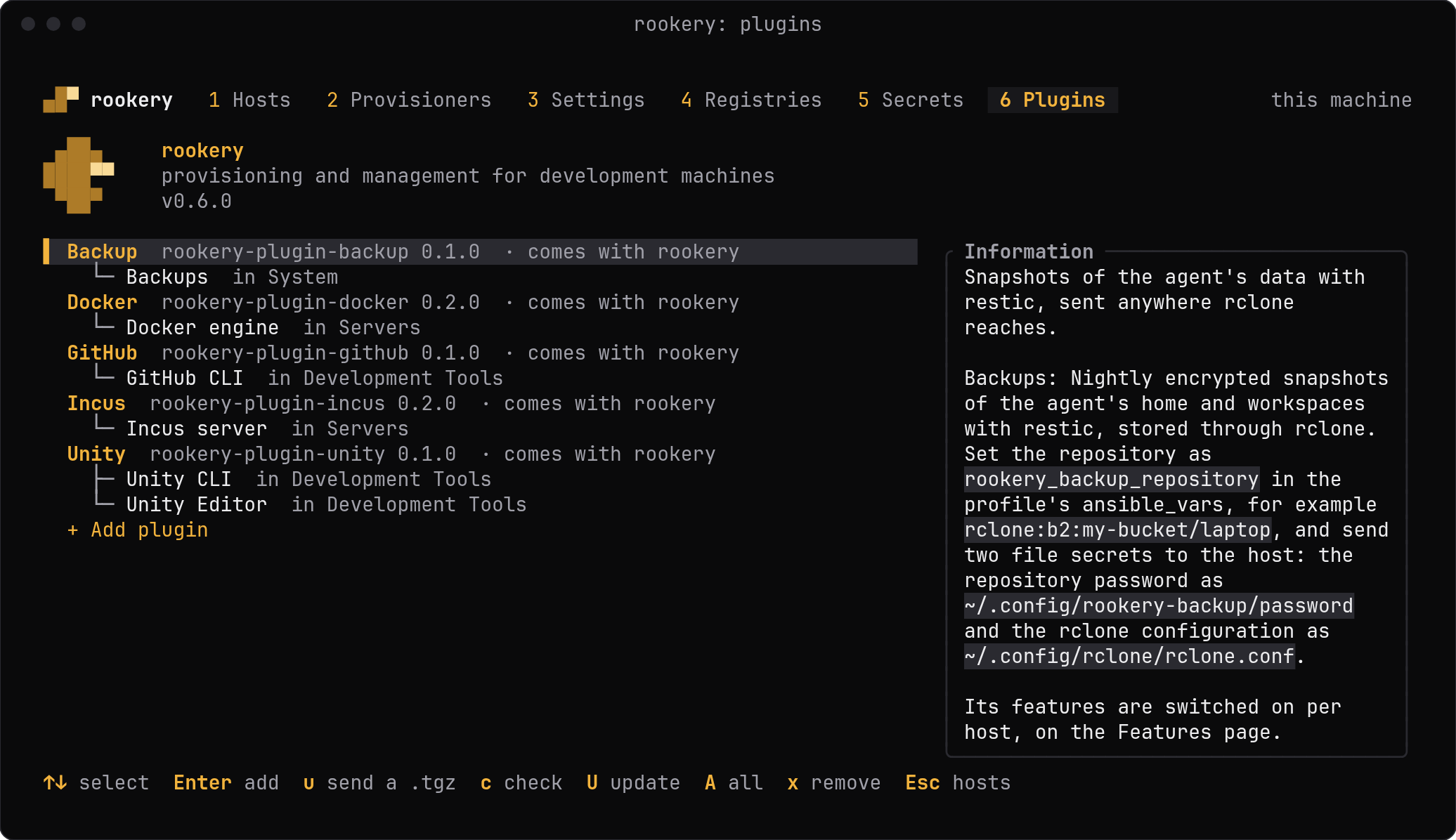
6 Plugins | Built-in and installed plugins, and adding, updating and removing your own (Plugins) |
The tabs after Hosts are for the role admin, which you have on your own machine.
A host
A host has its overview, for the running machine, and four set-up tabs for its profile. The overview is described in A host's overview. Change what is installed, accounts or install method on the overview opens the set-up tabs on Install, and Esc returns. A new host opens on Install.
Each tab depends only on the tabs before it. Install holds what you have to choose, and Settings what has a default. A new host can be made by filling in Install and pressing Enter on Run.
| Set-up tab | For |
|---|---|
1 Install | How to install, with the target (not for a created machine, which is always cloud), the provisioner and its required arguments, the SSH address, the hostname and Tailscale |
2 Features | Tool categories, browsers, graphics, Cockpit, Docker on the host and the features of plugins, which include the coding agents |
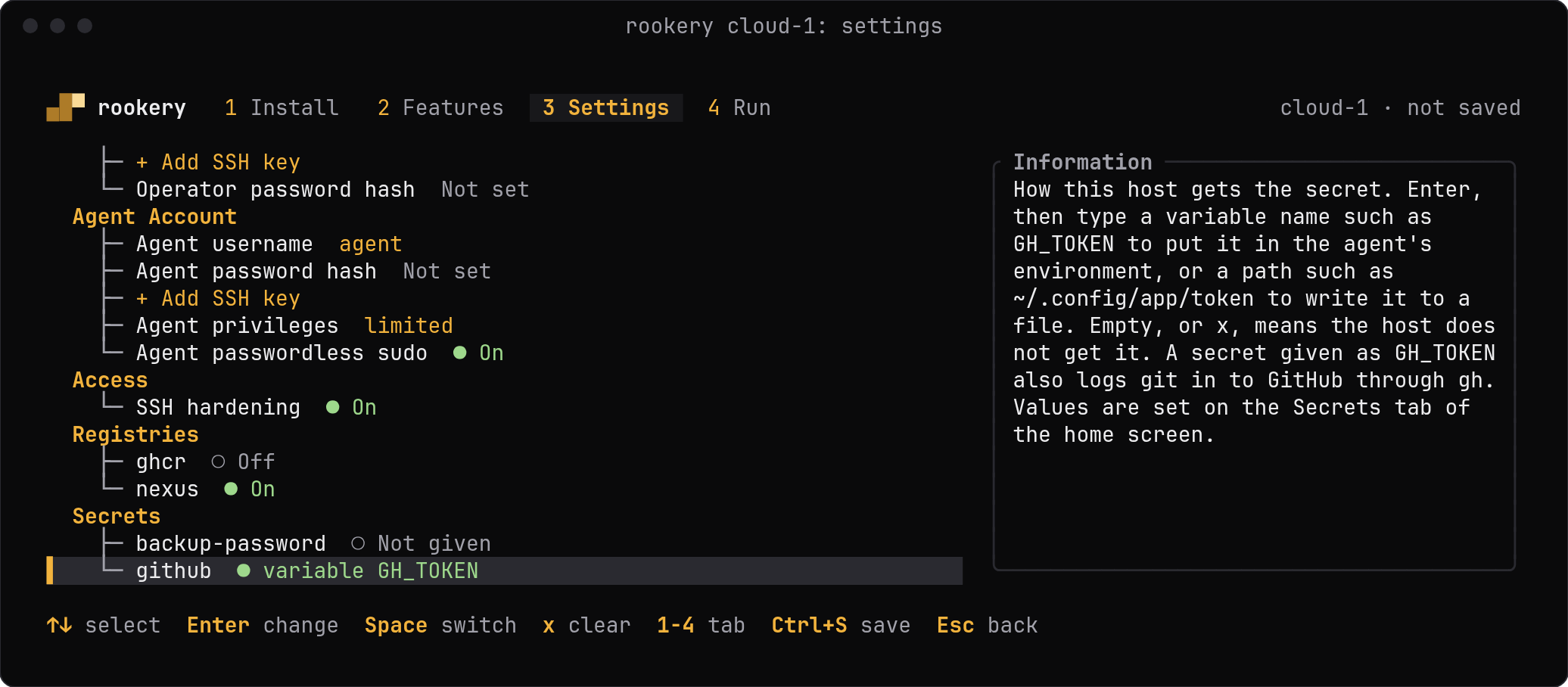
3 Settings | Everything with a default. See the list below |
4 Run | The last fields for the method, every problem grouped by tab, warnings, and the Run, Create with PROVISIONER and Save buttons |
The ways to install a host:
| Method | Run does, on the server |
|---|---|
| Create a machine | Has a provisioner create it, and sets it up (Provisioners) |
| USB installer | Builds the unattended installer and writes it to a USB drive, on the server's own machine (USB installer) |
| Cloud-init seed | Renders the seed to paste into a provider's user data field (Cloud) |
| Existing host over SSH | Applies the profile over SSH, or installs the controller alone on a managed host |
| Existing host, SSH only | Saves the host, which Rookery only logs in to (Host types) |
The Settings tab has these groups, in this order:
| Group | Holds | Shown for |
|---|---|---|
| Machine | The provisioner's CPUs, memory and disk | Create a machine |
| Provisioner Options | The provisioner's other arguments | Create a machine |
| Operator Account, Agent Account | The accounts | Every method |
| Access | SSH hardening, and Recovery SSH CIDR | Every method. No recovery CIDR for Create a machine |
| Registries, Secrets | The logins and secrets the host gets | Every method |
| Desktop | Desktop size | Every method |
| Installer | Disk selection, keyboard layout and Wi-Fi | USB installer |
| Release | Where the release is published | Cloud-init seed |
A row shows only when the method and features it belongs to are chosen. Each of the first three tabs lists its own problems at the bottom. Run lists all of them, grouped by tab, and doesn't start while one is listed.
The Information panel on the right explains the selected row. Apply this configuration on the overview sends changes to a running host.
Keys
| Key | Action |
|---|---|
| Up, Down, Enter | Select a row. Enter edits the row or runs it |
| Tab, Shift+Tab, number keys | Next or previous tab, or a tab by number; also accepts the current edit |
| F4 | Generate a value, such as a hostname or a password hash |
| F5 | Type a password and store its hash |
| c | On a key of the key ring, such as This Rookery's SSH key, copy its public half to the clipboard |
| Alt+R | In a panel, show its links as QR codes to scan with a phone. Left and Right go to the other links, any other key closes it. Where Alt+R is taken by other software, click its hint at the bottom of the panel |
| Ctrl+O | Copy the text of the field being edited |
| Ctrl+S | Save the profile, as Save on the Run tab does |
| Ctrl+U, Esc | Clear the field being edited, cancel the edit |
| x or Delete | Unset the selected text, path or secret field |
| q or Esc | From set-up back to the overview, from there to the home screen; asks again when there are unsaved changes |
| q | On the hosts of the home screen, quit |
| Ctrl+Q | In a session, leave it running. Anywhere else, quit |
Tabs, rows and buttons take mouse clicks, and lists scroll with the wheel. On Plugins, u opens the system's file dialog to send a .tgz to the server. On Linux that is zenity's or kdialog's; without one, ROOKERY_FILE names the package.
Your machine and the server
The screens take what they show from the server. Of your machine they use the clipboard and the file you choose to send. The server reads what its own machine has: its keys, its plugins and its USB drives. A path in a profile, such as the Ubuntu ISO of a USB installer, is a path on the server's machine.
The server and its token are kept as the settings server and server_token, in config.json of Rookery's folder of settings. Only you can read the file.
| System | Folder |
|---|---|
| Linux | ~/.config/rookery, or under $XDG_CONFIG_HOME |
| macOS | ~/Library/Application Support/rookery |
| Windows | %LOCALAPPDATA%\rookery. Its access list lets in you, SYSTEM and the administrators |
The first time Rookery starts its screens it takes in the server and token that rookery-remote kept, and removes that program's file.
Last updated on